
Connecting your email inbox
You can connect a company mailbox so that email sent to your business appears in Okappy. From there you can read the message and raise a job.
The Email page is shown under Company settings when the inbox is switched on for your company. If you cannot see it, contact Okappy support.
Connecting a mailbox
To connect a mailbox,
- click your profile icon towards the top right of the page
- select System settings
- under Company settings, choose Email
Choose Gmail, Outlook or IMAP.
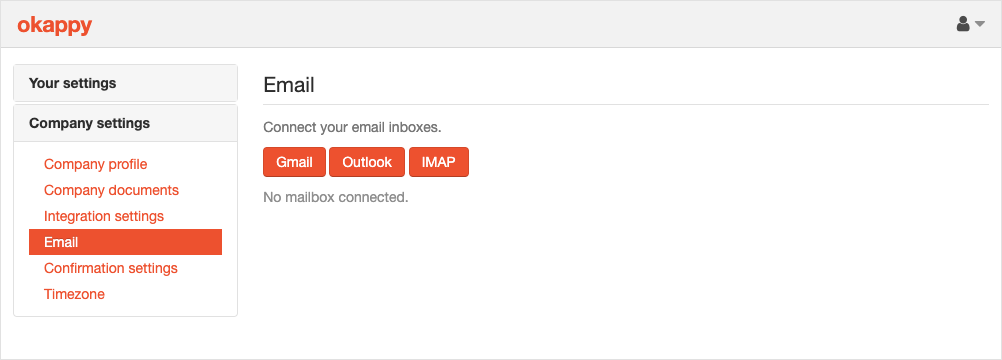
Gmail and Outlook
Click Gmail or Outlook. You are taken to that provider to sign in and allow Okappy to read mail from the mailbox.
When you have allowed access, you come back to Okappy and the mailbox is listed on the Email page.
IMAP
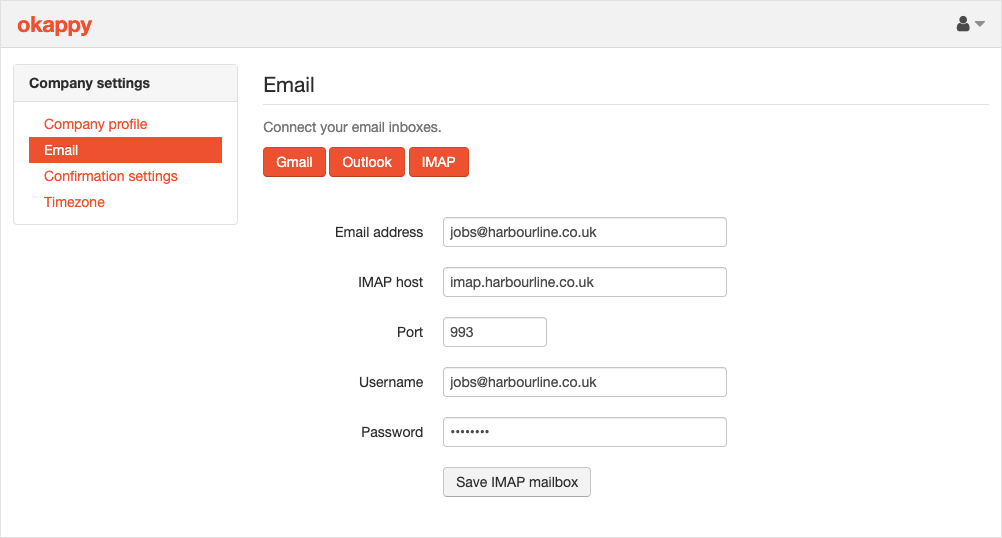
Click IMAP when your mail host uses a username and password. Gmail and Outlook accounts should use the buttons above.
- Enter the email address
- Enter the IMAP host, for example imap.example.com
- Leave the port as 993 unless your mail host tells you otherwise
- Enter the username and password
- Click Save IMAP mailbox
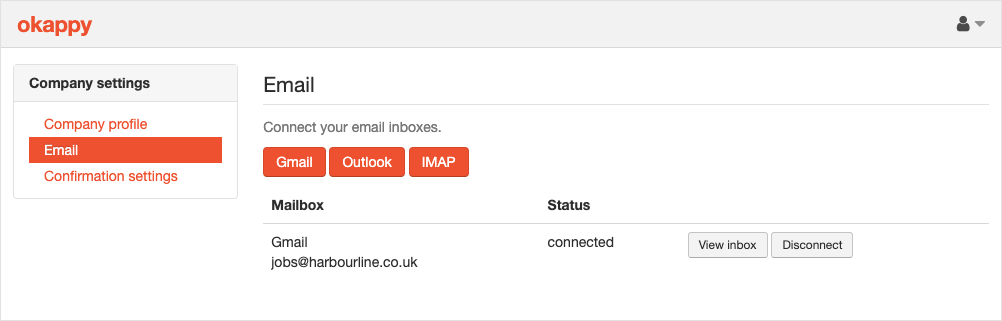
Mailboxes you have connected
Each mailbox is listed with its address and status. The status shows as connected when the mailbox is ready.
- View inbox opens that mailbox on the Messages page
- Disconnect removes the connection. Email already saved in Okappy stays in Okappy
If an error is shown under the address, disconnect the mailbox and connect it again.
Reading your email
To read mail,
- open Messages
- choose the Email tab
- if you have more than one mailbox, pick the one you want from the list above the search box
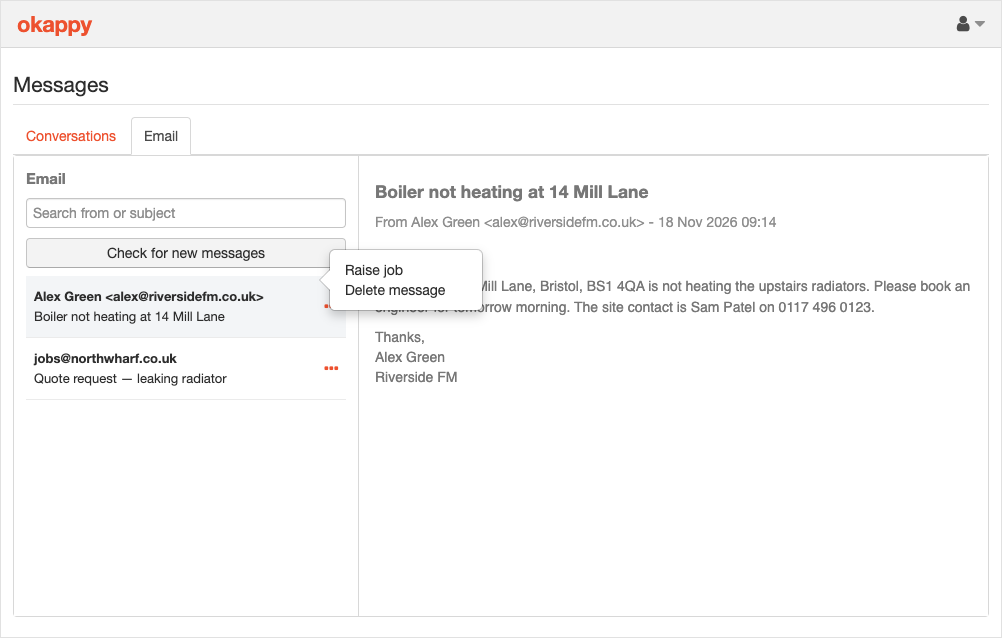
- search by the sender or the subject, or click Check for new messages to fetch mail from the mailbox
- click a message to read it
You can also open the inbox from Reports, under Emails received.
On a customer connection, Emails shows messages received from that customer.
Raising a job from an email
To raise a job,
- click the three dots next to the message
- choose Raise job
- the job form opens with the title Raise job from email. The description is filled in from the subject and the message
- if the sender matches one of your customers, that customer is selected. Otherwise choose the customer
- choose a job template and click Add job
If you have already raised a job from that email, Raise job opens the job. If the job is still a draft, the draft opens so you can finish it.
Deleting a message
Click the three dots next to the message and choose Delete message. The message is removed from Okappy and from the mailbox.
Notes
- Gmail and Outlook use the provider sign-in page. Do not put those passwords into the IMAP form
- Disconnecting a mailbox does not delete email already saved in Okappy
- Search looks at the sender, the subject and the message