
Using the job filter to help you work smarter
As you get more and more jobs on Okappy, you need to be able to focus on the jobs that matter without scrolling through every row.
The jobs dashboard gives you three ways to narrow the list: the Filter by dropdown, the Filter jobs box and the advanced filter behind the filter icon. These filters work together, so a job is shown only when it passes each filter you have set.
Use the standard filters to choose the type of jobs you want to see, use the text box to search across the jobs currently shown, and use the advanced filter when you want to show jobs containing particular text or hide jobs containing particular text.
Using the Filter by dropdown
To select a standard filter from the jobs dashboard, click the current label under Filter by at the top of the jobs list.

The dropdown lets you switch between common views such as All open jobs, Draft jobs, Outstanding jobs, Jobs not viewed, Completed jobs, Created today, and appointment-date filters such as jobs for today, tomorrow, this week or this month.
The following standard filters are available:
| Filter | Description |
|---|---|
| All open jobs | Includes jobs with all statuses apart from Archived and Cancelled. |
| Draft jobs | Shows draft jobs which have not yet been confirmed. |
| Outstanding jobs | Shows live jobs which are not archived, cancelled or completed. |
| Jobs not viewed | Shows jobs that have not yet been viewed. |
| Completed jobs | Shows jobs with status Completed. |
| Created today | Shows jobs created today, excluding archived and cancelled jobs. |
| Outstanding jobs for today / tomorrow / this week / this month | Shows outstanding jobs with appointment dates in the selected period. |
| All jobs for today / tomorrow | Shows all jobs with appointment dates in the selected period, excluding archived and cancelled jobs. |
There are also links to the archived jobs report, the cancelled jobs report and the Search report.
Filtering jobs added by you or a connection
The unique connected nature of Okappy’s workforce management platform means that you can add jobs for you or your customers. Your customers can also add jobs and assign them to you.
If you have a lot of jobs added by your connections and you want to show the jobs that you added only, click the Only show jobs added by you checkbox from within the filters menu.

Using the Filter jobs box
Use the Filter jobs box to quickly narrow the rows in the jobs list. You can type a word, part of a word, a postcode, a date, a customer name, an employee name, a reference, a PO number or text from the job description.
The search is case-insensitive and looks across the visible job row, including fields such as job ID, customer, address, description, assigned person, status, reference and custom columns.
The normal Filter jobs box uses smart table search:
| You type | What happens |
|---|---|
| london | Shows jobs where any part of the job contains the word london |
| london plumber | Shows jobs that contain both london and plumber. The words can be in different columns and in any order |
| “john smith” | Shows jobs that contain the phrase john smith |
| london OR plumber | Does not mean london or plumber. It filters for jobs containing the words london, or and plumber |
| smith | jones | The | symbol is treated as search text, it does not mean smith or jones |
In short, separate words work like this and that. The standard Filter jobs box does not provide a true this or that search.
Filter by postcode

Filter by date
Tips: try the following searches
- /08/ to show jobs in August.
- Today or Tomorrow

Filter by employee name

Filter by customer

Using the advanced filter
Click the filter icon next to the Filter jobs box to open the Advanced filter.
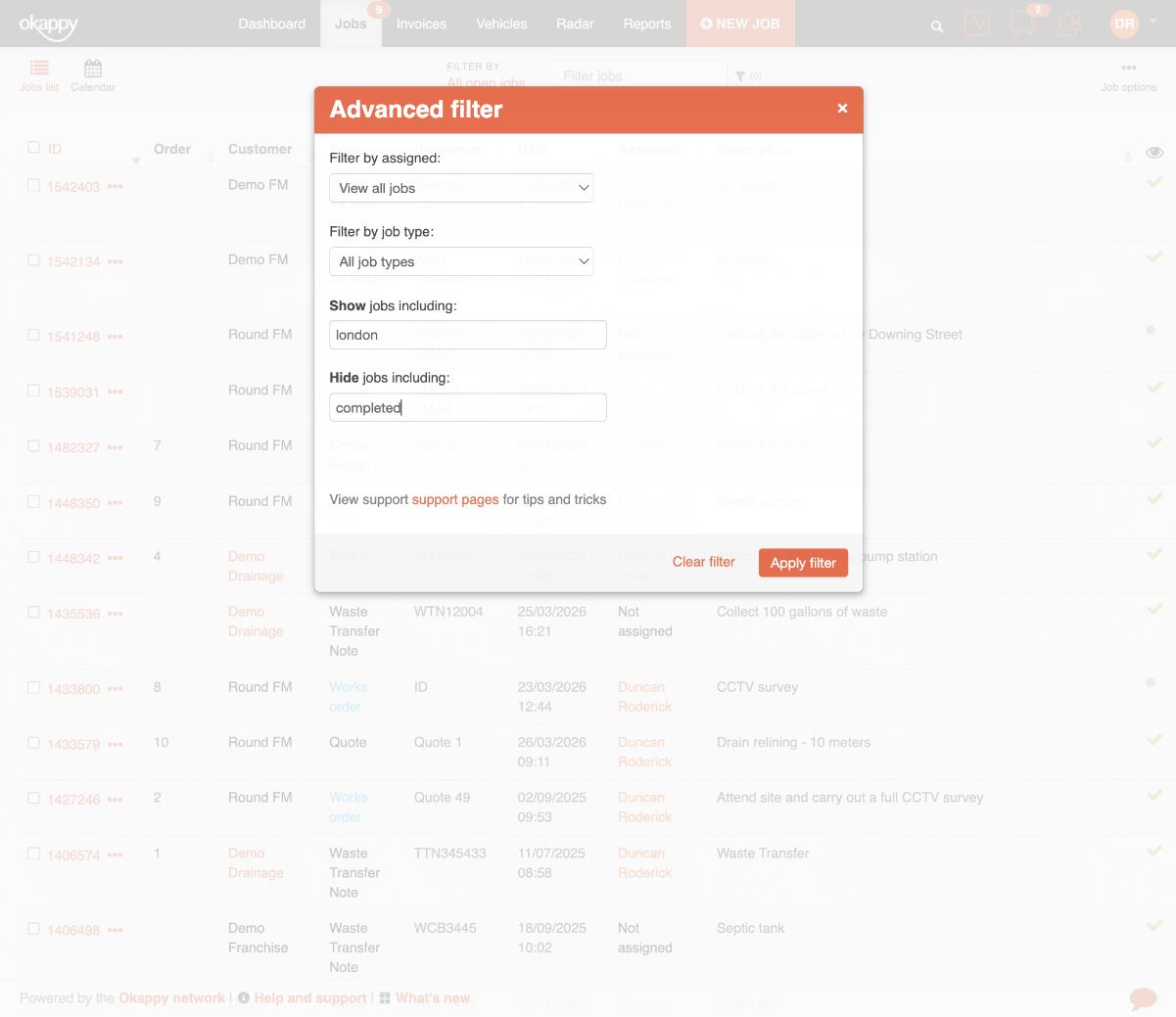
The advanced filter gives you four options:
- Filter by assigned – show jobs assigned to a person, subcontractor, yourself, or jobs that are not assigned.
- Filter by job type – show jobs for a particular job sheet template or job type.
- Show jobs including – keep only jobs whose details include the text you enter.
- Hide jobs including – hide jobs whose details include the text you enter.
All advanced filter fields that you set are applied together. For example, if you choose an assigned person, choose a job type, put london in Show jobs including and put completed in Hide jobs including, Okappy will show only jobs that match the assigned person and job type, contain london, and do not contain completed.
The Show jobs including and Hide jobs including boxes are simple text filters. They are case-insensitive and look across the job details, including the job number, customer, type, reference, description, address, contact names, phone numbers, custom columns, status, assigned person, vehicle, asset and the visible table row text.
These advanced text boxes do not use smart search. The whole value is treated as one piece of text:
londonmatches jobs containing london.london plumbermatches jobs containing the phrase london plumber. It does not split the words into london and plumber.london OR manchesterlooks for that exact text. It does not mean london or manchester.
Use Apply filter to apply the advanced filter. Use Clear filter to remove it. The advanced filter is saved in your browser, so it will stay in place until you change or clear it.
How the filters work together
The filters stack. A job is shown only if it matches:
- The current Filter by view, such as All open jobs or Completed jobs.
- The Filter jobs box, if you have typed anything there.
- The Advanced filter, if you have set any assigned, job type, show or hide fields.
A useful pattern is to type multiple words into Filter jobs when you want to find jobs containing this word and that word, then use Hide jobs including in the advanced filter for text you want to exclude, such as a status, customer name or recurring phrase.
If you need a true OR search, such as London or Manchester, the current jobs filters do not support that as a single search. Search each term separately, or use a shared reference, job type or keyword that the relevant jobs have in common.
For further information
For further information search in our support pages or forum